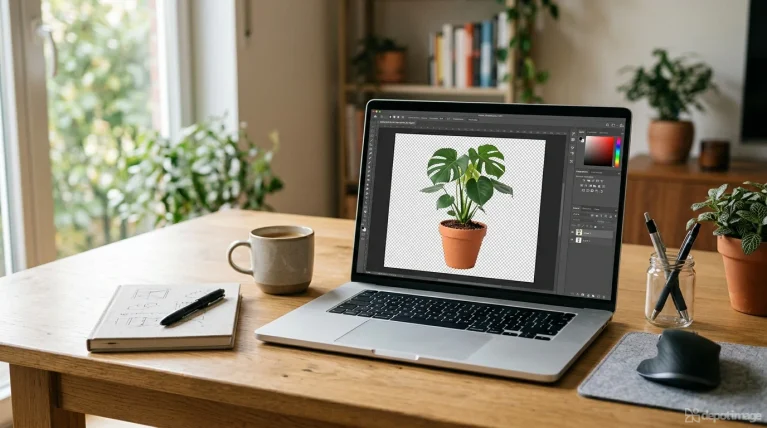
You export a picture and the editor asks: PNG, JPG, WebP, or AVIF? Pick the wrong one and your photo looks muddy, your logo gets a white box around it, or your website loads slowly because a single image weighs several megabytes.
The good news is that the choice is simpler than it looks. Each format was built for a different job. This guide explains what they do, compares them side by side, shows what browsers and WordPress support in 2026, and ends with a quick decision guide you can follow every time you save a file.
The Short Answer
| If you need… | Use |
|---|---|
| A transparent cutout, logo, or graphic with sharp text | PNG |
| A regular photo that works everywhere | JPG |
| Smaller files for a website, with transparency if needed | WebP |
| The smallest possible photos for a modern website | AVIF (with a fallback) |
| An image to send in email | JPG or PNG |
| A simple animation | WebP or GIF |
| A logo or icon that must scale to any size | SVG |
If you only remember one rule: keep PNG for transparent graphics, JPG for universal photos, and use WebP or AVIF to make your website faster.
Two Ideas You Need First
Lossy vs lossless. A lossless format keeps every pixel exactly as it was. A lossy format throws away details your eye is unlikely to notice in order to shrink the file. Lossy files are much smaller, but if you re-save them again and again, the quality slowly drops.
Transparency. Some formats can store empty, see-through pixels, which lets a cutout sit on any background. Others fill those pixels with a solid color, usually white or black.
PNG: The Format for Transparency and Sharp Graphics
PNG is lossless and supports full transparency, including soft semi-transparent edges. That makes it the standard format for cutouts, logos, icons, screenshots, and anything with text or flat colors.
Pros
- Perfect quality with no compression artifacts
- Full transparency
- Accepted by every browser, editor, and platform
Cons
- Large files for photographs
- No built-in way to trade quality for a smaller size
Best for: transparent PNG cutouts, logos, infographics, UI screenshots, and images you plan to edit again. Our guide on [removing a background for free] explains how to export a clean PNG cutout. (How to Remove the Background From an Image for Free: 7 Easy Methods That Work in 2026.)
JPG (JPEG): The Universal Photo Format
JPG has been the default photo format for decades. It uses lossy compression, which makes photographs small enough to share easily, and nearly every device, app, and email service can open it.
Pros
- Small files for photos
- Works absolutely everywhere
- Adjustable quality setting
Cons
- No transparency
- Visible blocky artifacts at low quality, especially around sharp edges and text
- Quality drops each time you re-save it
Best for: photos, social media uploads, email attachments, and any situation where compatibility matters more than the last few kilobytes. For quality, start around 75 to 85 percent and compare the result with the original at full zoom.
WebP: The Practical Modern Choice
WebP was designed by Google as a smarter replacement for JPG and PNG. It supports both lossy and lossless compression, transparency, and animation in a single format.
On file size, one 2026 comparison reports that WebP files are about 25 to 35 percent smaller than JPG. On support, current guides put WebP at roughly 97 percent of browsers worldwide, with every major browser, desktop and mobile, supporting it.
Pros
- Smaller than JPG and often smaller than PNG
- Supports transparency and animation
- Fast to create, with near-universal browser support
Cons
- Some older tools and apps still cannot open it
- Not every platform or email client accepts it
Best for: website images of all kinds, including transparent graphics that you want lighter than PNG.
AVIF: The Smallest Files, With a Few Catches
AVIF is the newest of the four and the most efficient. One comparison says it can be 20 to 50 percent smaller than WebP, and another guide reports that it gives roughly half the size of a JPG at similar visual quality. It also supports transparency and animation, and unlike WebP it can handle HDR and wide color gamut images.
Pros
- The best compression for photographs
- Transparency support
- HDR and wide color support
Cons
- Slower to encode than WebP, so converting large batches takes longer
- Weaker at lossless compression, where WebP or PNG are usually the better choice for screenshots, text graphics, and logos
- Most email clients still do not display it
- A small share of browsers cannot show it, so a fallback is wise
Best for: large photographic images on websites where speed matters, such as hero images and galleries.
Side-by-Side Comparison
| Feature | PNG | JPG | WebP | AVIF |
|---|---|---|---|---|
| Compression | Lossless | Lossy | Both | Both |
| Transparency | Yes | No | Yes | Yes |
| Animation | No (APNG is separate) | No | Yes | Yes |
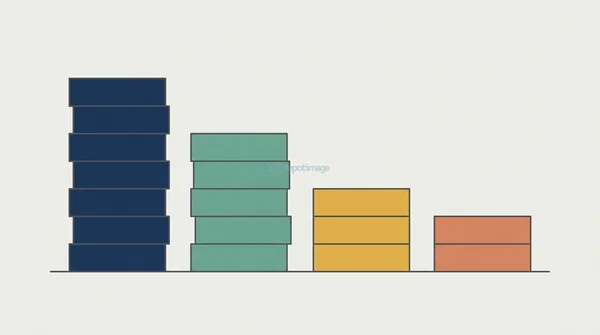
| Photo file size | Large | Medium | Small | Smallest |
| Text and sharp graphics | Excellent | Fair | Very good | Good, but not its strength |
| Compatibility | Universal | Universal | Near-universal | Very high, not complete |
| Best use | Cutouts, logos | Photos | Web images | Web photos |
Browser Support in 2026
Support is no longer the obstacle it used to be.
- WebP is supported by all the major browsers and sits at roughly 97 percent coverage.
- AVIF is supported by Chrome, Edge, Firefox, and Safari, and published figures range from about 92 to 96 percent depending on the source and measurement method. The remaining users are mostly on older iOS versions, older Android WebViews, and embedded browsers.
- JPEG XL is technically impressive, but Chrome has kept it behind a flag, which leaves overall coverage low, roughly 15 percent in one analysis, almost all of it from Safari. It is a format to watch, not one to rely on yet.
The safe approach is progressive enhancement: offer AVIF first, WebP second, and JPG or PNG as the final fallback. The browser picks the best format it understands, and nobody sees a broken image.
html
<picture>
  <source srcset="photo.avif" type="image/avif">
  <source srcset="photo.webp" type="image/webp">
  <img src="photo.jpg" alt="Describe the image here" width="1200" height="800">
</picture>
Which Format Should You Use? A Practical Guide
Product photo for an online store. Use JPG, or WebP and AVIF with a JPG fallback if you want maximum speed.
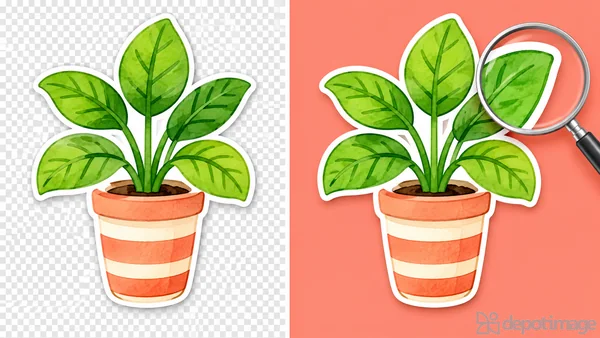
Transparent cutout or sticker. Use PNG for the editable master file. Offer WebP on web pages if you want a lighter version.
Logo. SVG if you have a vector file. Otherwise PNG, or lossless WebP.
Screenshot or image with text. PNG or lossless WebP. Heavy lossy compression makes text look fuzzy.
Blog header or hero image. AVIF or WebP with a JPG fallback.
Social media upload. JPG or PNG. Platforms recompress what you upload anyway, so give them a clean, correctly sized file. See our guide to [social media image sizes] for exact dimensions. (Link to your social media sizes article here.)
Email. JPG or PNG. Most email clients do not display AVIF.
Animation. Animated WebP is a mature, lighter alternative to GIF. Animated AVIF compresses well, but tools are still maturing and encoding is slow.
Printing. Use the highest quality file you have, such as PNG or the original, and avoid heavily compressed JPGs.
WordPress: What Works Out of the Box
If your site runs on WordPress, a few facts save you time:
- WordPress has accepted WebP uploads since version 5.8 and AVIF uploads since version 6.5 (released April 2024).
- Accepting a format is not the same as converting to it. If you upload a JPG, WordPress stores a JPG.
- To generate modern formats automatically, you can use the Modern Image Formats plugin from the WordPress Performance Team. By default it creates AVIF files if your hosting server supports them, and WebP otherwise. It creates modern versions of the generated image sizes while the original upload stays as the JPG or PNG you uploaded.
- Another option is to convert images before uploading, using a desktop tool or an optimization plugin.
Whatever you choose, test a few pages after switching formats, especially transparent PNGs and thumbnails, and confirm that your hosting handles AVIF properly.
How to Convert and Export Correctly
- Keep your original. Always store the highest quality version, a PNG or the camera original, before making smaller copies.
- Resize first. A 4000-pixel photo displayed at 800 pixels wastes bandwidth. Resize to the largest size you actually need.
- Convert with a visual tool. Free options such as Squoosh let you compare formats and quality sliders side by side in your browser.
- Compare at 100 percent zoom. Look at edges, text, and gradients, because that is where compression shows.
- Check transparency. Place the exported file on a dark and a light background before publishing.
- Name files clearly. Use descriptive file names and add alt text for accessibility and SEO.
For more on shrinking files without hurting quality, see our guide on [compressing images].
Common Mistakes to Avoid
- Saving a transparent cutout as JPG and ending up with a white box.
- Using PNG for a large photograph, which creates an unnecessarily huge file.
- Re-saving the same JPG many times, which degrades quality.
- Serving only AVIF with no fallback, which breaks images for a small group of visitors.
- Compressing logos and screenshots with a lossy setting that blurs the text.
- Converting everything without keeping the original files.
- Forgetting width and height attributes, which causes layout jumps while the page loads.
- Assuming a smaller file is always better. Check the quality before you publish.
Frequently Asked Questions
Which image format is best for websites?
WebP is the practical default thanks to near-universal support. AVIF gives smaller files for photographs and works well with WebP and JPG fallbacks.
Is PNG better than JPG?
They are good at different things. PNG is better for transparency, text, and graphics. JPG is better for photographs because the files are far smaller.
Does WebP support transparency?
Yes. WebP supports transparent backgrounds, which makes it a lighter alternative to PNG on web pages.
Is AVIF better than WebP?
For most photographs, AVIF produces smaller files at similar quality. WebP encodes faster, is supported by slightly more browsers, and tends to do better with lossless graphics.
Can I use WebP or AVIF in WordPress?
Yes. WordPress accepts WebP uploads (since 5.8) and AVIF uploads (since 6.5). Automatic conversion needs a plugin or an optimization workflow.
Which format should I use for email?
JPG or PNG. Most email clients do not support AVIF.
Which format keeps the best quality?
PNG keeps every pixel unchanged because it is lossless. For photos, high-quality AVIF or WebP can look nearly identical to the original at a much smaller size.
Final Thoughts
There is no single best image format, only the right one for the job. Use PNG when you need transparency and crisp graphics, JPG when you need a photo that opens everywhere, and WebP or AVIF when you want a faster website. Keep the original file, resize before you compress, and always check the result at full zoom. Follow those habits and your images will look sharp and load quickly on every device.