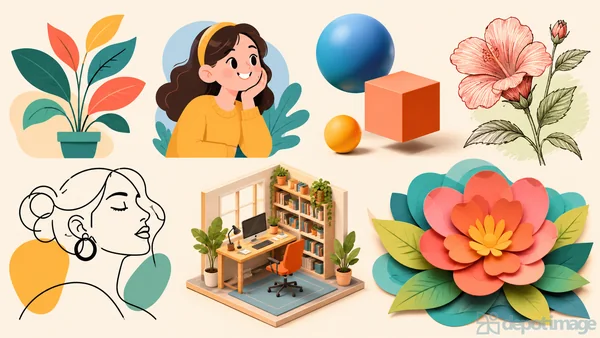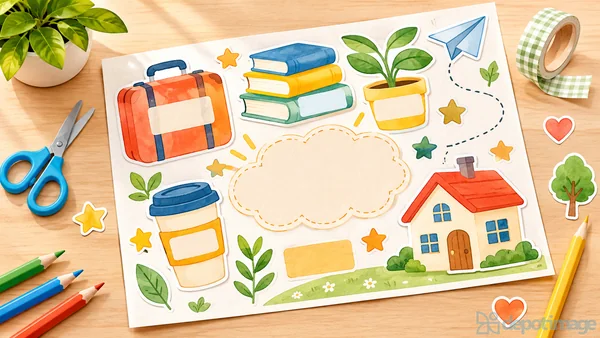
A digital collage lets you combine cutout images, textures, and shapes into one layered design without scissors or glue. If you have ever wondered how to make a digital collage that looks intentional instead of messy, the secret is simple: start with clean transparent PNG images and build up your layers step by step. Collage and mixed media are also showing up on 2027 design trend lists, so the style feels current. This guide covers the tools you need, a clear step-by-step process, creative ideas to try, and common mistakes to avoid. By the end, you will be ready to build social posts, journal pages, posters, or desktop wallpapers from free PNG cutouts and clipart.
What Is a Digital Collage?
A digital collage is a design made by arranging separate images, such as cutouts, patterns, and textures, on a shared canvas. It borrows the look of paper collage but lets you move, resize, and delete pieces freely.
Why PNG Cutouts Work So Well
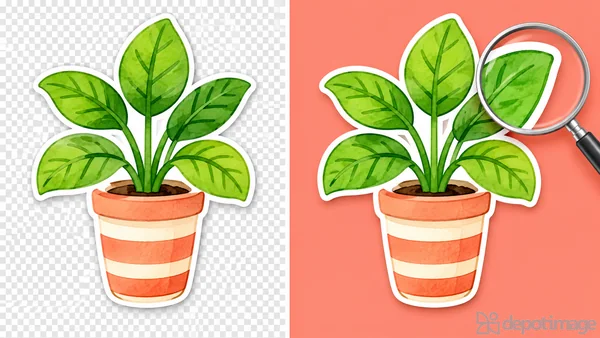
PNG images can have transparent backgrounds, so a plant, shape, or illustration can sit on top of any color or texture without a box around it. That makes PNG cutouts the building blocks of most digital collages.
Why Collage Feels Current
Kittl’s 2027 trend roundup lists collage and mixed media among its top design trends and describes mixed media as a rougher, DIY look with torn paper, tape, and textures. Many designers are pairing handmade-looking pieces with digital tools, which makes this a good time to try the style.
What You Need Before You Start
Pick Your Software
Any editor that supports layers will work.
- Canva: A beginner-friendly, drag-and-drop editor that runs in a browser.
- Photopea: A browser-based editor with layers, masks, and blend modes.
- GIMP: A free desktop editor with layers and masks for more advanced control.
Gather Your Materials
- 5–10 PNG cutouts, such as plants, shapes, objects, or illustrations.
- A background color, paper texture, or pattern.
- A few supporting elements like stars, arrows, tape strips, or torn-paper edges.
Choose images with a consistent look. Cutouts drawn in a similar style blend more easily than a random mix.
How to Make a Digital Collage Step by Step
Step 1: Set Up Your Canvas
Create a new design at the size you need. Common choices include a 1080 × 1080 pixel square for social posts, a 1080 × 1920 pixel vertical format for stories, or US Letter or A4 for a poster. Pick the size first so you do not have to resize later.
Step 2: Add a Background
Start with a flat color, a paper texture, or a subtle pattern. A muted background makes your cutouts stand out. Keep it simple, since the cutouts should carry the visual interest.
Step 3: Place a Focal Point
Choose your largest or most interesting PNG cutout and put it near the center or on a rule-of-thirds point. This anchor gives the eye a place to land first.
Step 4: Layer Supporting Elements
Add smaller cutouts around the focal point. Overlap some pieces slightly to create depth, and vary their sizes so the design does not feel flat. Think of layers like stacked sheets of paper, where each element sits above or below another.
Step 5: Add Shadows for Depth
A soft, blurred drop shadow makes cutouts look like they are lifted off the page. Keep the shadow subtle, use the same direction on every piece, and avoid heavy black. If a piece looks pasted on, adjust the shadow softness first.
Step 6: Unify Colors and Texture
Limit yourself to three or four main colors. If some pieces clash, adjust brightness or saturation, or add a light texture overlay across the whole design so everything feels related.
Step 7: Export and Save
Export a PNG or JPG for sharing, and keep your layered working file for future edits. If you plan to reuse a cutout in other designs, save it as a transparent PNG too.
Digital Collage Ideas to Try
Paper Cutout Style
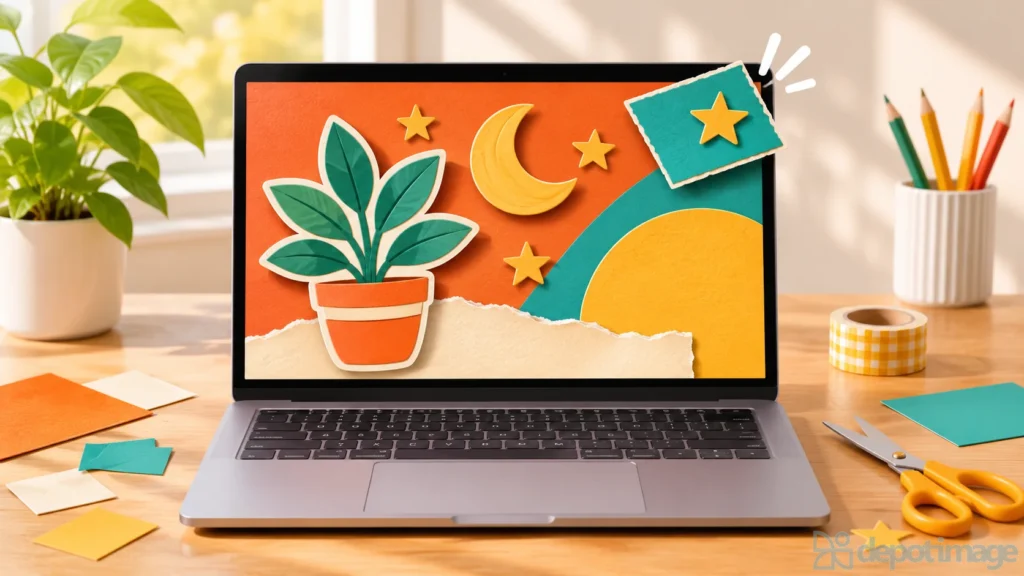
Use bold shapes, slightly rough edges, and soft shadows to mimic cut paper. This style works well for posters and social graphics.
Mixed Media Look
Combine PNG cutouts with textures such as torn paper, tape, and grain. A hand-drawn doodle or a stamp-style element can add a DIY feel.
Themed Mood Boards
Build a collage around a theme such as travel, a garden, or a favorite season. This is also a fun way to plan a project or gather inspiration.
Digital Scrapbook Pages
Layer clipart, frames, and small decorations over a patterned background to create a scrapbook page for a journal, blog post, or keepsake.
Common Mistakes and How to Fix Them
- Too many elements: Remove pieces until the focal point is clear.
- Mixed art styles: Stick to one or two illustration styles for a cohesive look.
- Harsh edges or white fringes: Zoom in and check each cutout. Replace images with leftover white borders.
- Flat composition: Vary sizes and overlap pieces to create depth.
- Inconsistent shadows: Use the same light direction on every layer.
- Low-resolution images: Pixelated cutouts show up quickly when enlarged, so start with higher-resolution files.
If a PNG shows a white box when you place it, it may not have real transparency. A guide on how to check and fix a transparent PNG can help you spot the problem.
Where to Find Free PNG Cutouts and Clipart
Before you download, run through a short checklist:
- The image has clean edges with real transparency.
- The resolution is large enough for your canvas.
- The style matches the other pieces in your collage.
- The usage terms suit your purpose.
Depotimage offers free PNG images, transparent background images, and clipart for personal, non-commercial use, which suits personal designs, journal pages, and hobby projects. If you plan to use a collage for business or resale, confirm the terms for each image first.
Conclusion
Learning how to make a digital collage comes down to a few habits: choose clean PNG cutouts, keep a clear focal point, layer with intention, and add subtle shadows for depth. Start small with a limited palette and a handful of pieces, then experiment with textures and mixed media as you gain confidence. Save your layered file so you can revise later. For source images, Depotimage’s free PNG images and clipart are a convenient place to begin for personal creative projects.
Frequently Asked Questions
What is the easiest way to make a digital collage?
Use a browser-based editor such as Canva or Photopea. Create a canvas, add a background, place a large PNG cutout as your focal point, and layer smaller pieces around it. Add soft shadows, adjust colors, and export. Starting with a template or a few pieces keeps it simple.
Do I need transparent PNG images for a collage?
They are not required, but they make collage much easier. Transparent PNGs have no background, so you can layer them over colors, textures, and other images without white boxes. Images with solid backgrounds need to be cut out first.
What software is best for digital collage?
It depends on your skill level. Canva is easy for beginners, Photopea offers layers and masks in a browser, and GIMP provides free, more advanced desktop control. Any editor that supports layers and transparent PNG files can work well for a collage.
How do I make cutouts look realistic?
Add a soft, subtle drop shadow in the same direction for every layer, and overlap pieces slightly so they feel stacked. Keep colors consistent, and consider a light texture overlay across the whole design to tie everything together.
Can I use free PNG images in a collage I share online?
Often yes for personal use, but always check each source’s terms. Depotimage provides its downloads primarily for personal, non-commercial use. If you plan to sell, advertise with, or distribute the finished collage, verify the license for every image first.